Find any code you scanned, any time
The iPhone Camera forgets a QR code as soon as you look away. QR Code Scan Kit saves every scan in a history on your phone, grouped by day, with search, stars and folders, so the Wi-Fi password or the event link is still there next week.
 Coming soon
iPhone · iPad · iPhone Duo
- 01
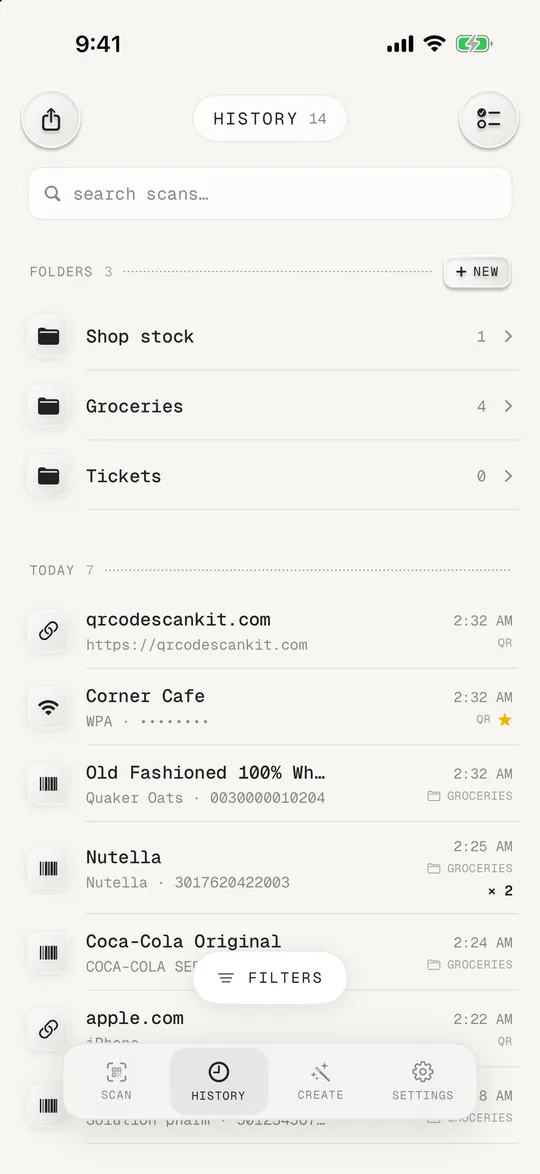
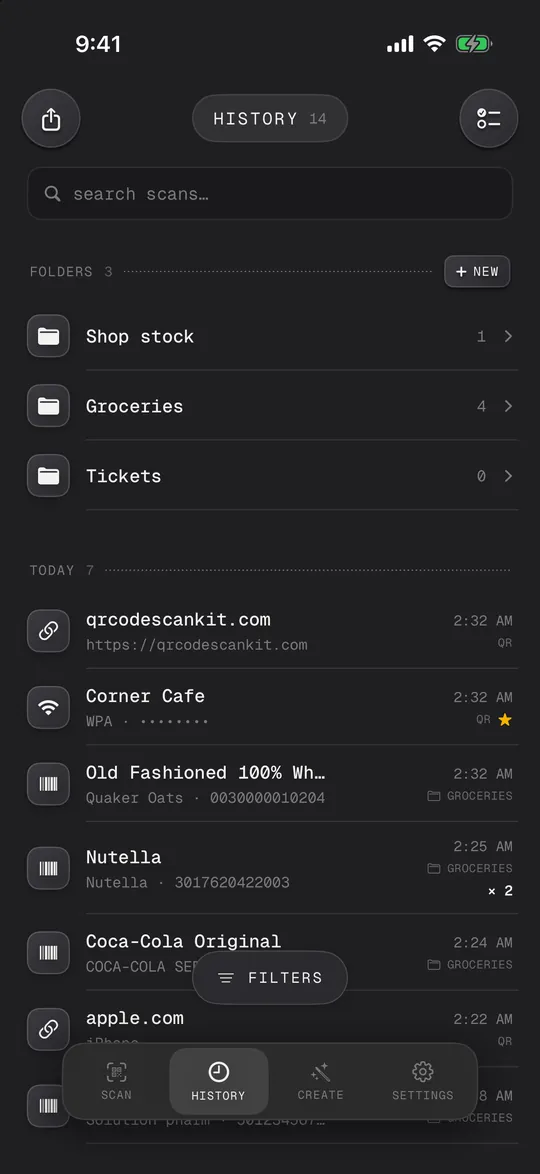
Open History
Scans are grouped by day: today, yesterday and older dates, newest first.
- 02
Search or filter
Type a name, a web address or a number, or use the filters pill to show one kind of code.
- 03
Sort into folders
Drag a row onto a folder, or long-press and pick Move to folder. Star the ones you need often.
Product names in the list
Product barcodes show the product name, so a shopping list reads like one.
Select and export
Select scans or a whole folder and export a CSV, copy them or move them together.
Only on your phone
History lives in the app's storage on your iPhone. There's no account and no server holding it; clear it in Settings any time.
- History isn't synced to the cloud or other devices. Export a CSV if you need a copy.
- Deleting the app deletes the history; we can't recover it.
Where do scanned QR codes go on iPhone?
With the Camera app, nowhere: there's no history. In QR Code Scan Kit every scan is saved in the History tab on your phone.
Can I see my QR code history?
Yes. Open History to see every scan by day, search it, and open any row to get its card and buttons back.
How do I delete my scan history?
Swipe a row to delete it, select several and delete them, or use Settings › Clear history to remove everything.